
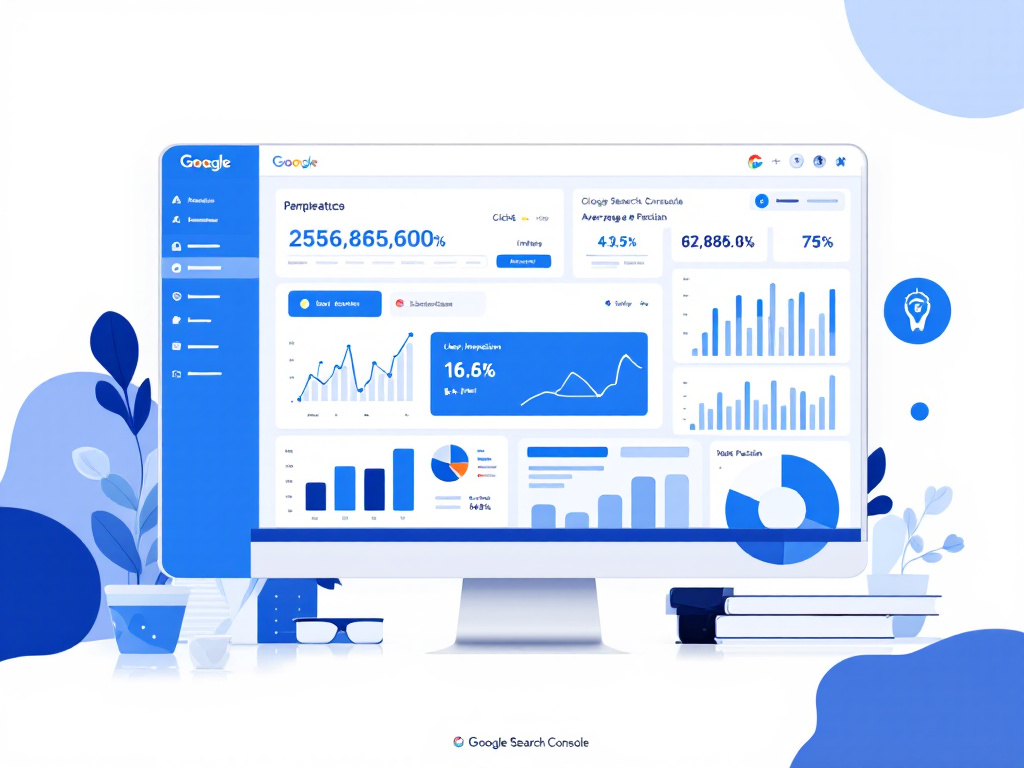
You’ve just launched a new page and you’re itching to see if it’s driving traffic. The google search console performance report gives you a clear window into how your site shows up in search results, from clicks and impressions to average position. In this guide, you’ll learn how to interpret core metrics, dive into the fresh 24-hour view, compare data across dimensions, and turn those insights into smarter SEO moves.
Unlock performance metrics
Understand core metrics
- Clicks: times someone clicked your site in Google Search
- Impressions: how often your pages appeared in results
- Average click-through rate (CTR): ratio of clicks to impressions
- Average position: typical ranking spot for your pages
Check the default view
By default you’ll see data for the past three months, so you can spot trends over a solid period. The chart and table update daily, with the newest data shown as a dotted line (that’s preliminary info still filling in).
Explore the new 24-hour view
See hourly granularity
Ever wondered how your page performs hour by hour? The 24-hour view breaks down clicks, impressions, CTR, and position by the hour, so you can catch sudden spikes or dips.
Adjust to your local time
Data aligns with your browser’s time zone, showing the last 24 hours exactly as you experience them. No more guessing when your peak traffic really hit.
Watch for preliminary data
Whenever you spot a dotted section on the chart, hover over it to see a note reminding you the numbers are still rolling in. Things firm up after a few hours.
Filter and compare data
Use filters by dimension
Narrow your view by query, page, country, device, or search type (Search results, Discover, News). If you want to focus on mobile performance in Canada, add those two filters at once.
Compare date ranges
Click the compare toggle to line up two periods—last week versus the week before, or this quarter against the same stretch last year. This helps you see growth, seasonality, or the impact of marketing campaigns.
Apply insights to your SEO
Optimize top queries
Spot your highest-impression queries, then update title tags or meta descriptions to boost CTR. A small tweak can turn more impressions into clicks.
Revamp low-performing pages
If a page ranks on page two or three with solid impressions, consider adding fresh content or improving your headings to push it into page one territory.
Track seasonal trends
Use comparisons to spot recurring peaks and valleys. Then plan content and promotions around high-interest periods.
Integrate with other tools
If you haven’t yet set up Search Console, start with our google search console setup guide. Once you’re live, you can dive deeper with the google search console url inspection tool to diagnose indexing issues, or keep an eye on your link profile via google search console backlinks. For a full walkthrough of the interface, check out our post on how to use google search console.
Summary and next actions
- Use core metrics to measure your baseline performance
- Harness the 24-hour view for near-real-time trends
- Filter and compare data to uncover hidden opportunities
- Turn insights into title tag updates and content refreshes
- Link up with setup, inspection, and backlink tools
Try exploring the 24-hour view today, then share one insight you uncovered in the comments below. Your next SEO win is just a few clicks away!